❌

Normal view

CUDA Toolkit 13.4 Adds Windows on Arm Support and Greater Control over Shared GPUs

9 September 2026 at 20:24
Every NVIDIA CUDA Toolkit release adds functionality and performance improvements that help developers get more from NVIDIA GPUs and the broader NVIDIA software...

Every NVIDIA CUDA Toolkit release adds functionality and performance improvements that help developers get more from NVIDIA GPUs and the broader NVIDIA software platform. CUDA Toolkit 13.4 adds support for Windows on Arm. CUDA applications have long been supported on Arm platforms through Linux; this release extends that capability to the Windows on Arm platform.

Source

NVIDIA JetPack 7.2.1 Adds Agentic Video Skills and T3000 Emulation

11 August 2026 at 19:00
Video is a core data path across NVIDIA Jetson applications, from robotics and intelligent video analytics to industrial automation, healthcare, media...

Video is a core data path across NVIDIA Jetson applications, from robotics and intelligent video analytics to industrial automation, healthcare, media processing, and remote operations. A system may capture several cameras, decode network streams, run AI inference or conventional vision processing, draw results, and encode video for storage or delivery. The individual calls are…

Source

Introducing NVIDIA Fleet Intelligence for Real-Time GPU Fleet Visibility and Optimization

11 May 2026 at 19:44
The compute capability of large GPU fleets presents unprecedented opportunities to innovate and provide value to customers in record time. Yet these...

The compute capability of large GPU fleets presents unprecedented opportunities to innovate and provide value to customers in record time. Yet these advancements come with a variety of challenges. At scale, teams are juggling heterogeneous hardware, fast‑moving software stacks, tight power envelopes, and spiky, multitenant workloads. A single hotspot, misconfigured driver, or subtle hardware fault…

Source

Introducing OpenClaw on Amazon Lightsail to run your autonomous private AI agents

Today, we’re announcing the general availability of OpenClaw on Amazon Lightsail to launch OpenClaw instance, pairing your browser, enabling AI capabilities, and optionally connecting messaging channels. Your Lightsail OpenClaw instance is pre-configured with Amazon Bedrock as the default AI model provider. Once you complete setup, you can start chatting with your AI assistant immediately β€” no additional configuration required.

OpenClaw is an open-source self-hosted autonomous private AI agent that acts as a personal digital assistant by running directly on your computer. You can run AI agents on OpenClaw through your browser to connect to messaging apps like WhatsApp, Discord, or Telegram to perform tasks such as managing emails, browsing the web, and organizing files, rather than just answering questions.

AWS customers have asked if they can run OpenClaw on AWS. Some of them blogged about running OpenClaw on Amazon EC2 instances. As someone who has experienced installing OpenClaw directly on my home device, I learned that this is not easy and that there are many security considerations.

So, let me introduce how to launch a pre-configured OpenClaw instance on Amazon Lightsail more easily and run it securely.

OpenClaw on Amazon Lightsail in action
To get started, go to the Amazon Lightsail console and choose Create instance on the Instances section. After choosing your preferred AWS Region and Availability Zone, Linux/Unix platform to run your instance, choose OpenClaw under Select a blueprint.

You can choose your instance plan (4 GB memory plan is recommended for optimal performance) and enter a name for your instance. Finally choose Create instance. Your instance will be in a Running state in a few minutes.

Before you can use the OpenClaw dashboard, you should pair your browser with OpenClaw. This creates a secure connection between your browser session and OpenClaw. To pair your browser with OpenClaw, choose Connect using SSH in the Getting started tab.

When a browser-based SSH terminal opens, you can see the dashboard URL, security credentials displayed in the welcome message. Copy them and open the dashboard in a new browser tab. In the OpenClaw dashboard, you can paste the copied access token into the Gateway Token field in the OpenClaw dashboard.

When prompted, press y to continue and a to approve with device pairing in the SSH terminal. When pairing is complete, you can see the OK status in the OpenClaw dashboard and your browser is now connected to your OpenClaw instance.

Your OpenClaw instance on Lightsail is configured to use Amazon Bedrock to power its AI assistant. To enable Bedrock API access, copy the script in the Getting started tab and run copied script into the AWS CloudShell terminal.

Once the script is complete, go to Chat in the OpenClaw dashboard to start using your AI assistant!

You can set up OpenClaw to work with messaging apps like Telegram and WhatsApp for interacting with your AI assistant directly from your phone or messaging client. To learn more, visit Get started with OpenClaw on Lightsail in the Amazon Lightsail User Guide.

Things to know
Here are key considerations to know about this feature:

  • Permission β€” You can customize AWS IAM permissions granted to your OpenClaw instance. The setup script creates an IAM role with a policy that grants access to Amazon Bedrock. You can customize this policy at any time. But, you should be careful when modifying permissions because it may prevent OpenClaw from generating AI responses. To learn more, visit AWS IAM policies in the AWS documentation.
  • Cost β€” You pay for the instance plan you selected on an on-demand hourly rate only for what you use. Every message sent to and received from the OpenClaw assistant is processed through Amazon Bedrock using a token-based pricing model. If you select a third-party model distributed through AWS Marketplace such as Anthropic Claude or Cohere, there may be additional software fees on top of the per-token cost.
  • Security β€” Running a personal AI agent on OpenClaw is powerful, but it may cause security threat if you are careless. I recommend to hide your OpenClaw gateway never to expose it to open internet. The gateway auth token is your password, so rotate it often and store it in your environment file not hardcoded in config file. To learn more about security tips, visit Security on OpenClaw gateway.

Now available
OpenClaw on Amazon Lightsail is now available in all AWS commercial Regions where Amazon Lightsail is available. For Regional availability and a future roadmap, visit the AWS Capabilities by Region.

Give a try in the Lightsail console and send feedback to AWS re:Post for Amazon Lightsail or through your usual AWS support contacts.

– Channy

Amazon FSx for NetApp ONTAP now integrates with Amazon S3 for seamless data access

Today, we’re announcing the ability to access your data in Amazon FSx for NetApp ONTAP file systems using Amazon Simple Storage Service (Amazon S3). With this capability, you can use your enterprise file data to augment generative AI applications with Amazon Bedrock Knowledge Bases for Retrieval Augmented Generation (RAG), train machine learning (ML) models with Amazon SageMaker, generate insights with Amazon S3 integrated third-party services, use comprehensive research capabilities in AI-powered business intelligence (BI) tools such as Amazon Quick Suite, and run analyses using Amazon S3 based cloud-native applications, all while your file data continues to reside in your FSx for NetApp ONTAP file system.

Amazon FSx for NetApp ONTAP is the first and only fully AWS managed NetApp ONTAP file system in the cloud to migrate on-premises applications that rely on NetApp ONTAP or other network-attached storage (NAS) appliances to AWS without having to change how you manage your data. FSx for NetApp ONTAP provides the popular capabilities, high performance, and data management APIs of ONTAP file systems with the added benefits of the AWS Cloud, such as simplified management, on-demand scaling, and seamless integration with other AWS services.

Over the years, AWS has developed a broad range of industry-leading AI, ML, and analytics services and applications that work with data in Amazon S3 that organizations use to innovate faster, discover new insights, and make even better data-driven decisions. However, some organizations want to use these services with their enterprise file data stored in NetApp ONTAP or other NAS appliances.

How to get started
You can create and attach an S3 Access Point to your FSx for ONTAP file system using the Amazon FSx console, the AWS Command Line Interface (AWS CLI), or the AWS SDK.

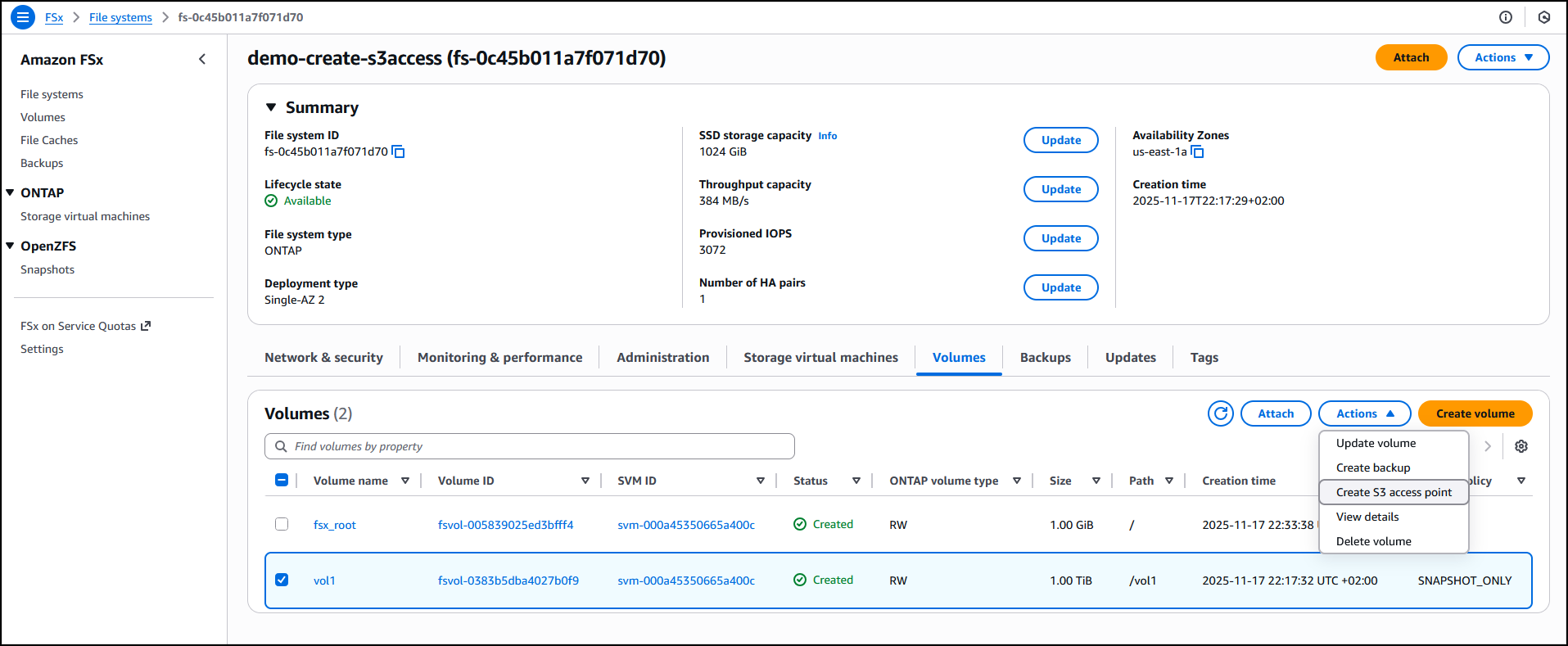
I have an existing FSx for ONTAP file system demo-create-s3access which I created by following the steps in the Creating file systems in the FSx for ONTAP documentation. Using the Amazon FSx console I now choose the file system ID fs-0c45b011a7f071d70 to access the full details of the file system.

I’ll attach the access point to the volume of the file system. I choose the volume vol1 and then select Create S3 Access Point from the Actions dropdown menu.


I enter details such as the access point name, the type of file system user identity and the network configuration, then choose Create s3 Access Point to finalize the process.


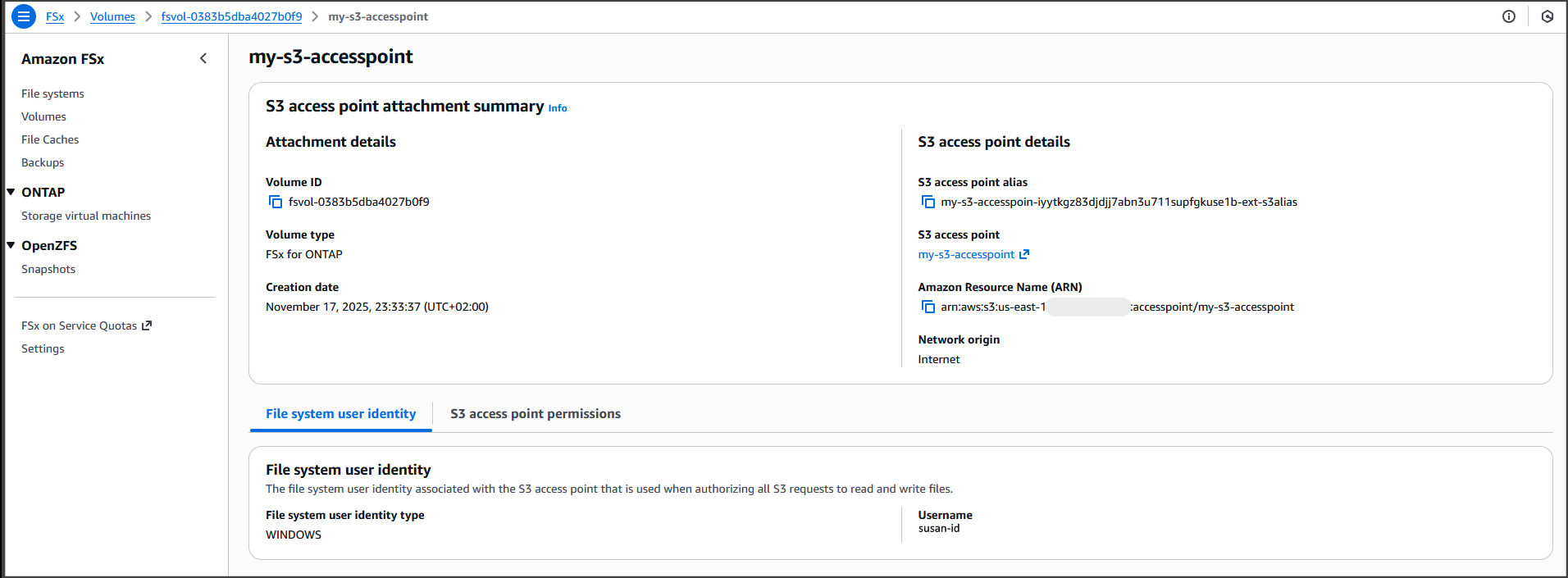
After it’s created, the access point my-s3-accesspoint is ready to allow access to the file data stored in my file system demo-create-s3access from Amazon S3. Amazon Access Points are S3 endpoints that can be attached to Amazon FSx volumes and used to perform Amazon S3 object operations.


I can now bring proprietary data stored in the file system demo-create-s3access to Amazon S3 for use in applications that work with Amazon S3 while my file data continues to reside in the FSx for NetApp ONTAP file system using the access point my-s3-accesspoint (this data remains accessible through the file protocols).

For the walkthrough in this post, I’ll integrate with Quick Suite.

Integrating decades of enterprise file data with the latest AI powered BI tools on AWS
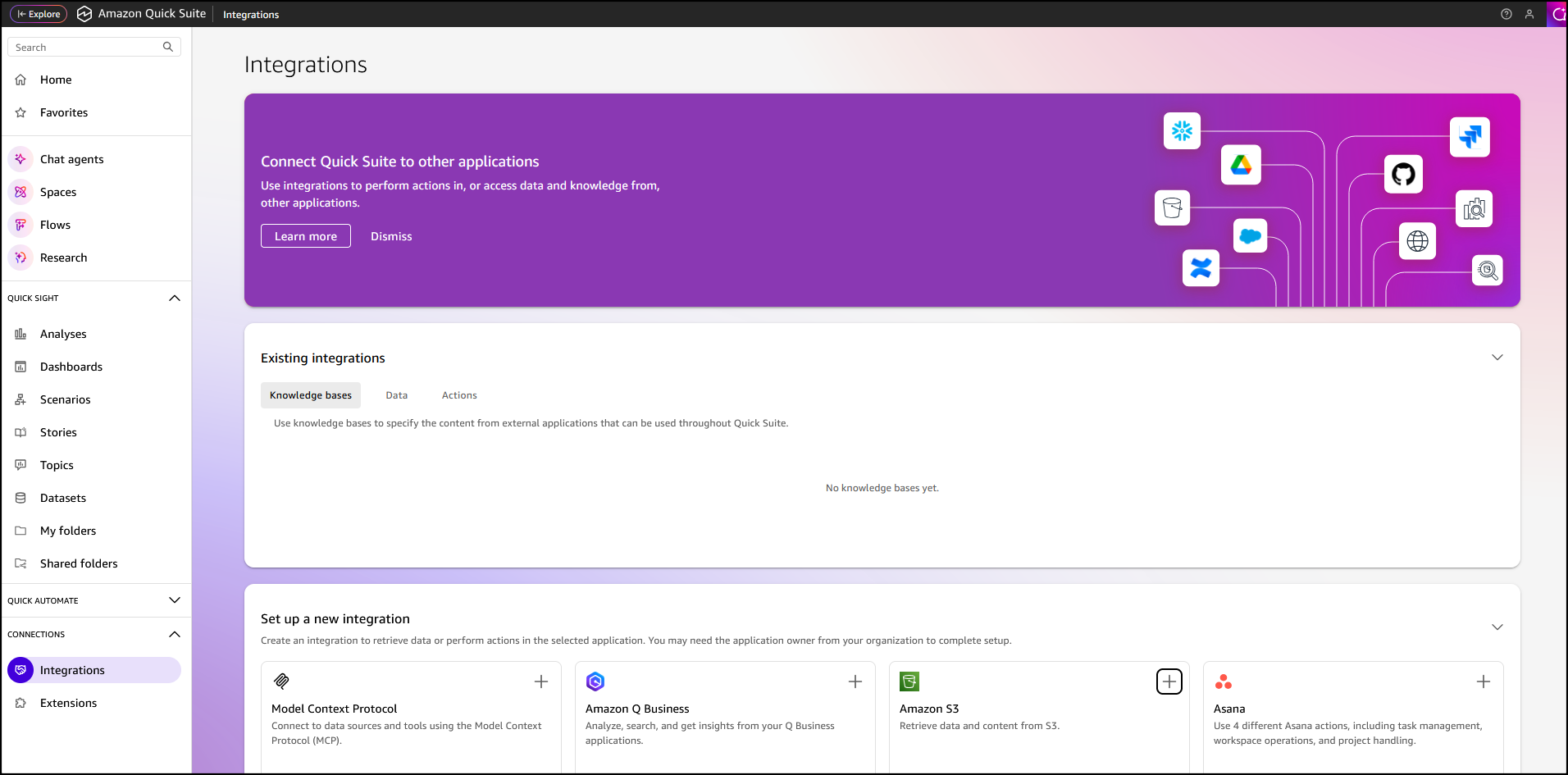
In the Quick Suite Console, in the left navigation pane, I choose Connections, then select Integrations. Before you begin, make sure that you have the correct permissions to the Amazon S3 AWS resource. You can control the AWS resources that Quick Suite can access by following the Amazon Quick Suite user guide.


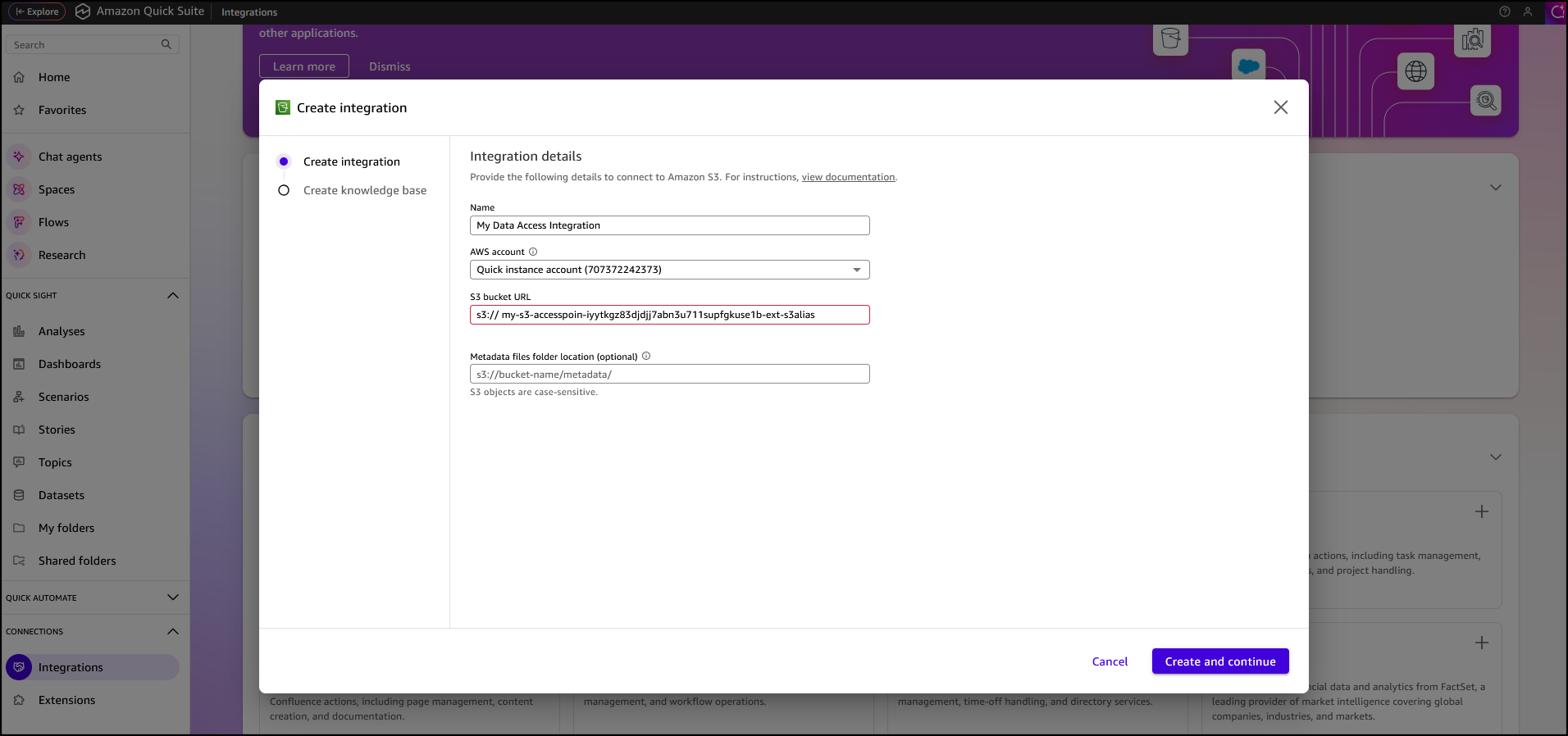
After I’ve selected the Amazon S3 integration I enter my Amazon S3 Access Point alias as the S3 bucket URL, leave the rest of the information as default, then choose Create and continue.


I finalize the process by providing the Name of the knowledge base, the Description, then choose Create.


After the knowledge base has been created it’s automatically synchronized, it’s now available for interaction.


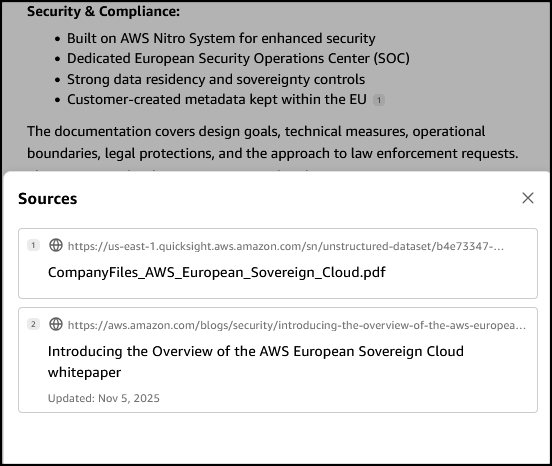
I want to learn more about the AWS European Sovereign Cloud so I’ve updated the file system (accessed through the S3 Access Point my-s3-accesspoin-iyytkgz83djdjj7abn3u711supfgkuse1b-ext-s3alias) with the AWS whitepaper on this topic. In the chat in Amazon Quick Suite. I start asking the first question β€œdo we have any documentation on the europe sovereignty cloud?β€œ. To answer my question, the chat agent accesses and analyzes various types of data sources I have permission to use, including uploaded files in my current conversation, spaces I have access to, knowledge bases from my integrations, and more.

When I verify the source, I see that the document I uploaded to my file system is listed as one of the sources.

Other use cases of Amazon S3 Access Points for Amazon FSx for NetApp ONTAP
Earlier, we looked at use cases such as connecting an organization’s proprietary file data to Amazon Quick Suite for advanced business intelligence. Additionally, Amazon S3 Access Points for Amazon FSx for NetApp ONTAP can be used to seamlessly integrate enterprise file data with comprehensive analytics services, such as Amazon Athena for serverless SQL queries or AWS Glue for ETL processing, to name a few.

Amazon S3 Access Points for Amazon FSx for NetApp ONTAP are also suitable for data access from serverless compute workloads that are cloud-native with containerized microservices that require flexible access to shared enterprise datasets, such as configuration files, reference data, content libraries, model artifacts, and application assets.

Now available
You can get started today using the Amazon FSx console, AWS CLI, or AWS SDK to attach Amazon S3 Access Points to your Amazon FSx for NetApp ONTAP file systems. The feature is available in the following AWS Regions: Africa (Cape Town), Asia Pacific (Hong Kong, Hyderabad, Jakarta, Melbourne, Mumbai, Osaka, Seoul, Singapore, Sydney, Tokyo), Canada (Central, Calgary), Europe (Frankfurt, Ireland, London, Milan, Paris, Spain, Stockholm, Zurich), Israel (Tel Aviv), Middle East (Bahrain, UAE), South America (Sao Paulo), US East (N. Virginia, Ohio), and US West (N. California Oregon). You’re billed by Amazon S3 for the requests and data transfer costs through your S3 Access Point, in addition to your standard Amazon FSx charges. Learn more on the Amazon FSx for NetApp ONTAP pricing page.

PS: Writing a blog post at AWS is always a team effort, even when you see only one name under the post title. In this case, I want to thank Luke Miller, for his expertise and generous help with technical guidance, which made this overview possible and comprehensive.

– Veliswa Boya.

How to Build In-Vehicle AI Agents with NVIDIA: From Cloud to CarΒ 

5 May 2026 at 16:00
The automotive cockpit is undergoing a fundamental shift from rule-based interfaces to agentic, multimodal AI systems capable of reasoning, planning, and...

The automotive cockpit is undergoing a fundamental shift from rule-based interfaces to agentic, multimodal AI systems capable of reasoning, planning, and acting. In most vehicles on the road today, in-vehicle assistants still rely on fixed command-response patterns: interpret a phrase, trigger an action, reset. While effective for well-defined tasks, this approach doesn’t scale to modern…

Source

❌